
To move a room and everything within it from one point of the work area to another, start by moving your mouse to an empty point in the room in the layout window. Right click inside the room and from the context menu, select the command Position -> Move.
The room and all of its contents will be highlighted (see the image below).
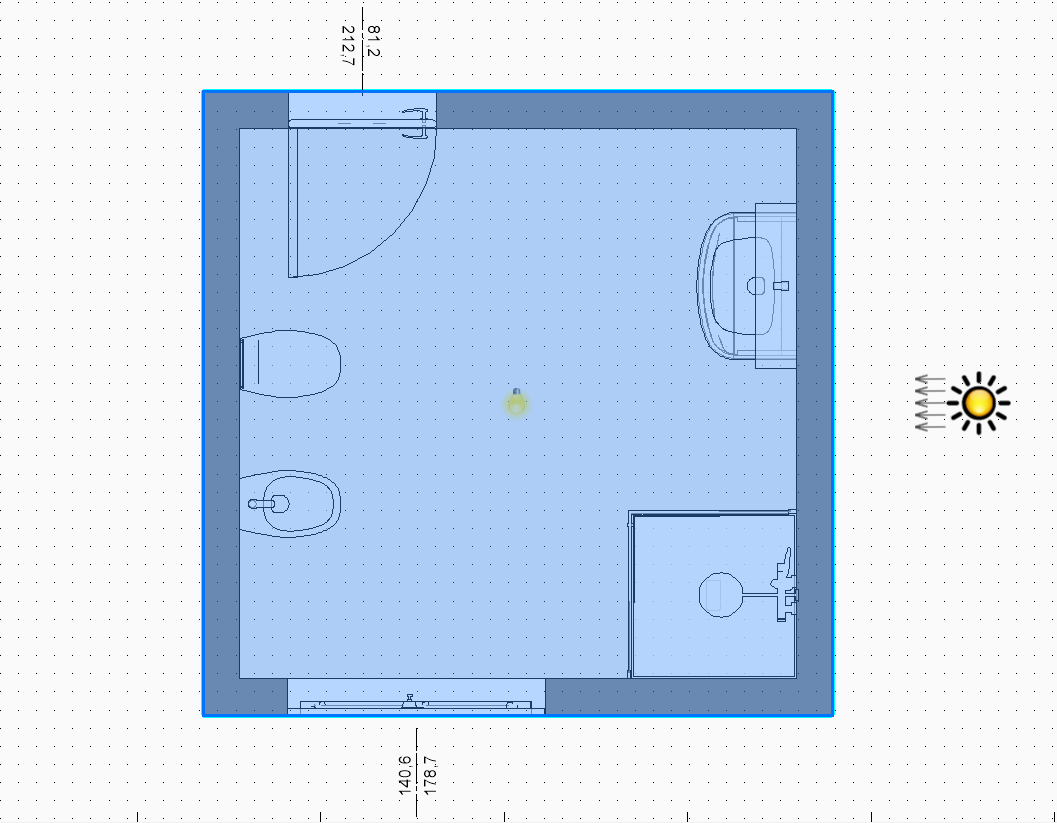
Position your cursor inside the room and, holding down the left mouse button, move your mouse to the new point in which you want to position your room. With the Move command still active, it is possible to rotate the room using the '+' and '-' keys, which rotate the room 45° counterclockwise and clockwise respectively (the same commands are present in the context menu by right clicking with your mouse).
A double click with the left mouse button confirms and closes the command.
When you are moving the room, if you approach another room present within the project, DomuS3D will allow you to place the rooms next to one another, fusing the shared common wall. It is not possible, however, to move a room inside another room.
When you move a room, all items within the room are moved along with it and maintain their relative position (furnishings, 3D objects, groups, lights, quotes, text...).
This article is valid for the 2019 version and later.