
Holes (and windows) you create in the walls usually produce light themselves: this is called Portal Light and allows you to simulate the light coming from outside the room.
Holes and windows are settled in order to be Portal light as a default; this means that if you do not want the light to be generated, you need to disable this behaviour. By double clicking the left mouse button on the hole/window (or by clicking the right mouse button on it and selecting the command Properties) open the Properties window for that light.
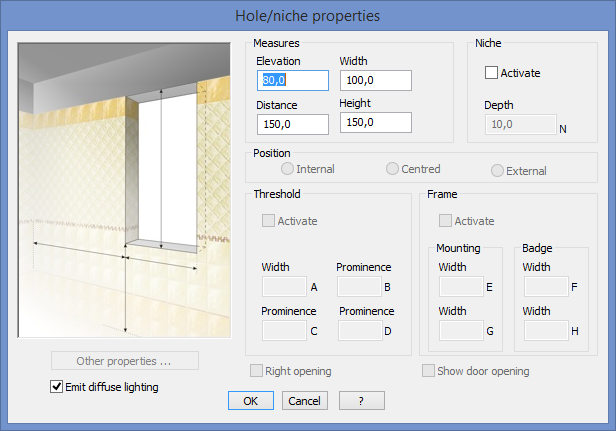
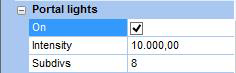
The rendering parameters for the light coming from a hole/aperture are not available in the hole/niche’s properties mask; you can customize them in the Portal lights section of the general rendering parameters window (seen before), where you can enable Portal lights by checking the On control.
Before closing this mask, indeed, it’s important to check the Emit diffuse lighting control, so that the Portal light will be available from this hole.
What follows is the description of the variables available in the Portal lights section of the Rendering parameters pane.
Intensity allows you to set the intensity of the light.
Subdivs allows you to set the quality of the light: low values, such as 4 or 8, produce some grain on surfaces but rendering will be quicker. Higher values, such as 16, 24 or 32, solve this unpleasant effect but you’ll need to wait a bit longer.
Remember to disable Portal Light in case you are rendering a room by night.
This article is valid for DomuS3D® 2017 and later versions